When you browse the internet using Chrome, Microsoft Edge, Safari, or other browsers, they store some website data in the form of cache and cookies. Clearing this stored data can help resolve issues such as pages not loading properly or displaying incorrectly.
The cache may stop working correctly after a website update; you might need to sign in again after clearing it.
So, let’s see how to clean browser data.
In Chrome
- At the top right, click More and then Delete browsing data or Ctrl+Shift+Del.
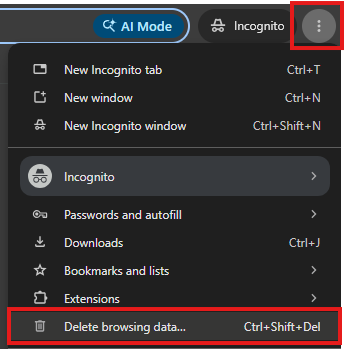
-
Choose a time range, like Last hour or All time.
- Select the types of information you want to remove.
-
Click Delete data.
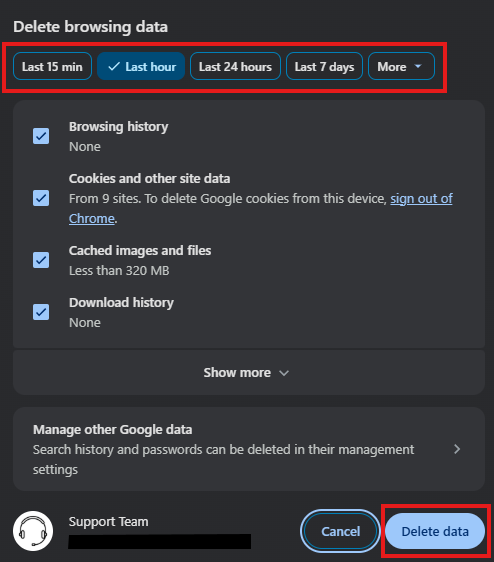
Close the Settings page. Any changes you've made will automatically be saved.
In Mozilla Firefox
- At the top right, click More and then Settings.
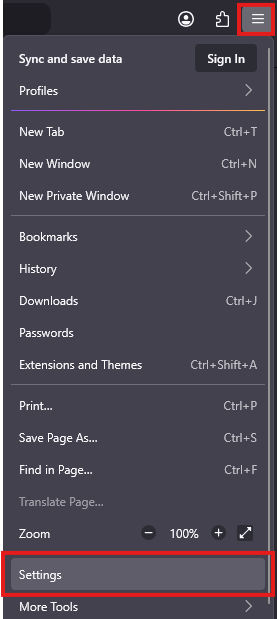
- Select the Privacy & Security panel.
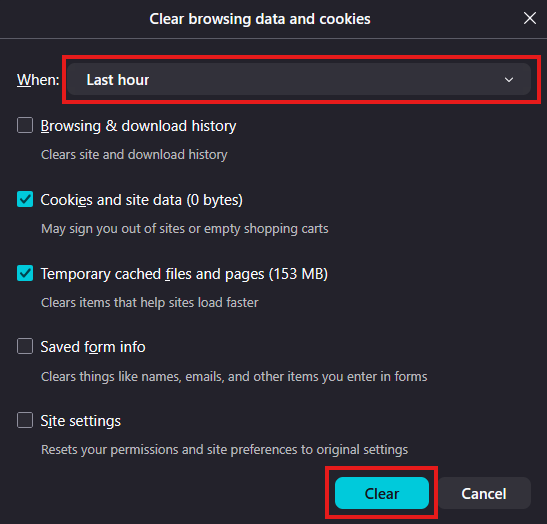
- In the Browsing data section, click Clear Browsing Data.
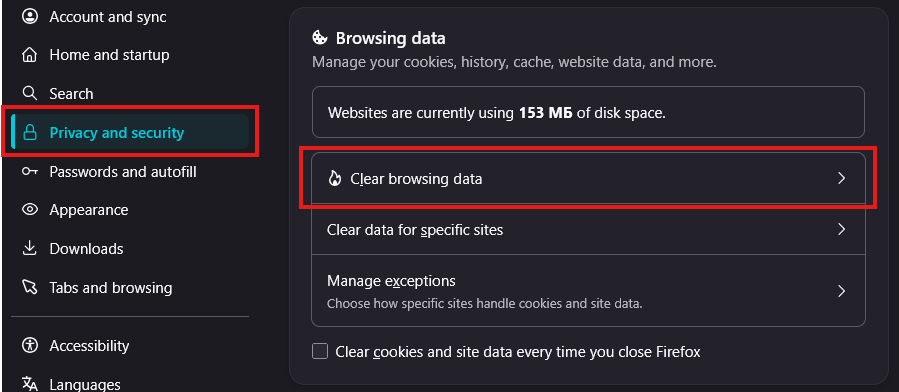
- Choose a time range, like Last hour or All time.
- Select the types of information you want to remove.
- Click the Clear button.
In Microsoft Edge
- At the top right, click More or Alt+F and then Delete browsing data.
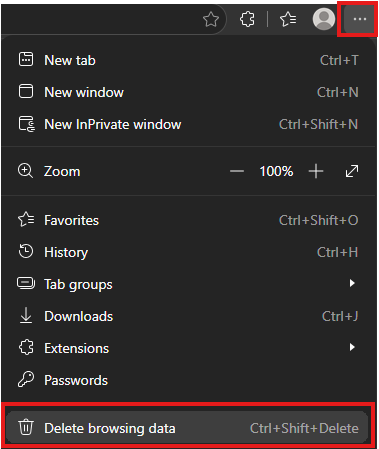
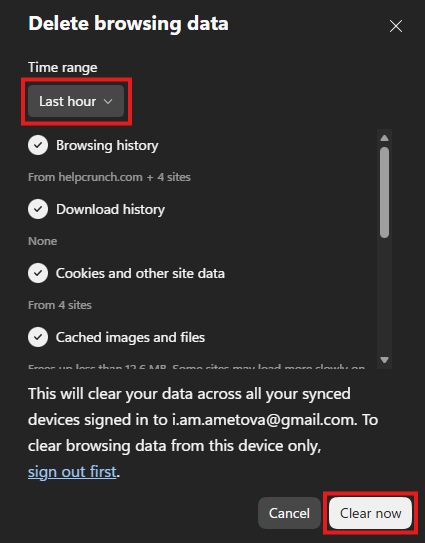
- Choose a time range, like Last hour or All time.
- Select the types of information you want to remove.
- Click the Clear now button.
Safari on Mac
Remove the data of one site (for example, only our website):
- In the menu bar, click "Safari", then "Settings" (in older versions "Preferences").
- Open the "Privacy" tab.
- Click "Manage Website Data".
- Search for the site, select it and click "Remove". To remove everything, click "Remove All".
Clear the whole cache only:
- Open "Safari", "Settings", "Advanced" and enable "Show features for web developers" (in older versions "Show Develop menu in menu bar").
- In the menu bar, click "Develop", then "Empty Caches". The shortcut is Option+Cmd+E.
Clear history together with cookies and cache: click "Safari", then "Clear History", choose a period and confirm.
Safari on iPhone and iPad
- Open "Settings", then "Safari". [CHECK: on iOS 18 and later the path may be Settings, Apps, Safari.]
- Tap "Clear History and Website Data".
- Confirm.
To remove data for one site only, open "Settings", "Safari", "Advanced", "Website Data", find the site and swipe to delete it.
Removing website data can sign you out of sites and reset their settings. Save any unsent forms before you clear the data.
If the page still does not work after clearing the cache, try another browser or a private window, then contact our support team and tell us which browser and version you use.
