
By default, the forwarding method you selected when purchasing the number will be set. You can change this at any time via your account. You can forward incoming SMS messages to up to 4 destinations simultaneously, or disable this option altogether and view your messages in the ‘SMS’ section under the ‘Statistics’ tab in your account. The cost of each method is displayed immediately after the direction is entered.
🔧Number settings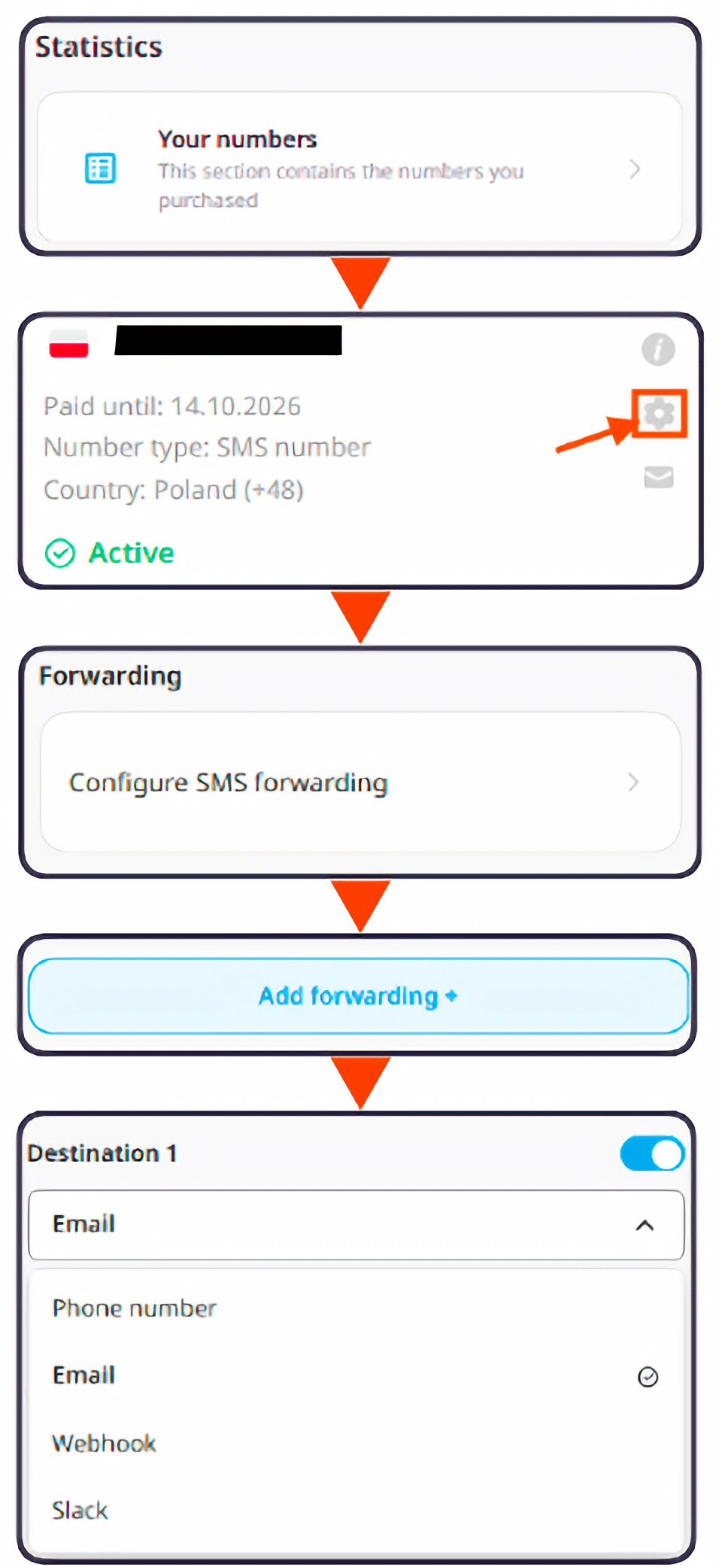
- Log in to your Personal Account.
- Open the "YOUR NUMBERS" tab in the "Statistics" block.
- Click the "Settings" button next to the number you want to configure.
- Open the "Configure SMS forwarding" tab in the "Forwarding" block.
- Click "Add forwarding"
- Select up to 4 methods for forwarding messages.
How to set up SMS forwarding:
📞Forward to a phone number
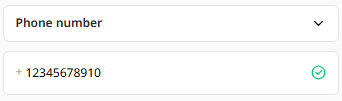 In the forwarding settings, select the "Phone Number" option.
- Enter the number where you want to receive SMS.
- Click "SAVE".
📌 Forwarding to a phone number is paid.
📧 Forward to email
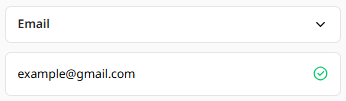 In the forwarding settings, select the "Email" option
- Enter your email address.
- Click "SAVE".
💡 Forwarding to email is free for most numbers.
🌐 Forward via HTTP(s)
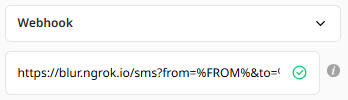 In the forwarding settings, select the "Webhook" option.
- Enter the URL of your script that will receive and handle the SMS data. Hover over the "i" icon next to the field to see an example.
- Click "SAVE".
To receive SMS via HTTP(s), you need a handler on your server: a lightweight script or endpoint that processes incoming GET requests. Our system sends SMS data via GET requests using standard webhooks. This is not a REST API. The parameters are passed directly in the URL when the SMS arrives.
Example request format:
http://someserver.com/sms.php?from=%FROM%&to=%TO%&id=%IDSMS%&date=%DATE%&msg=%MESSAGE%
| Parameter | Meaning |
|---|---|
| %FROM% | Sender's phone number |
| %TO% | Your virtual number |
| %IDSMS% | Message ID |
| %DATE% | Timestamp of the SMS |
| %MESSAGE% | Text of the message |
| %DIDNAME% | Name of the DID number |
Another example:
https://blur.ngrok.io/sms?from=%FROM%&to=%TO%&id=%IDSMS%&date=%DATE%&msg=%MESSAGE%
This URL is triggered automatically every time an SMS arrives and passes the message data to your server.
✈️ Forward to Telegram
What you need:
- A Telegram bot.
- A Telegram group to receive the messages.
- A virtual number that supports SMS reception.
🎥 Prefer video instructions? Watch the walkthrough.
Step 1: Create a bot
- Open BotFather in Telegram.
- Send the command /newbot.
- Set a name for your bot.
- Save the API token that BotFather sends you.
Example of an API token:
8698862170:AAST4z8dAhNScsHSoBM3f3Ri6TMTRN9Nc1s
Step 2: Create a group and find its ID
- Create a new Telegram group for incoming SMS and add your bot to it.
- Open the web version of Telegram and log in.
- Open your group. The group ID is at the end of the URL in the address bar. It starts with a "-" sign.
Example: in https://web.telegram.org/k/#-4000000000 the group ID is -4000000000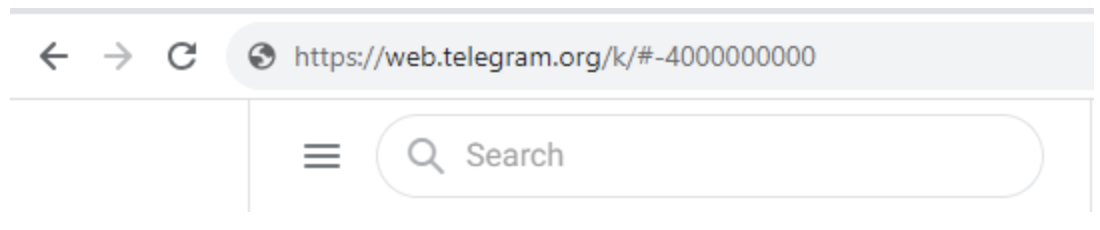
Step 3. Add the webhook to your number
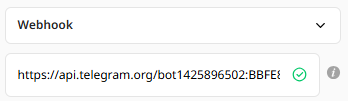
- In the forwarding settings, select the "HTTP(s)" option.
- Paste the webhook below. Replace YOUR_API_TOKEN with the token from Step 1 and YOUR_GROUP_ID with the ID from Step 2.
- Click "SAVE"
https://api.telegram.org/botYOUR_API_TOKEN/sendMessage?chat_id=YOUR_GROUP_ID&text=Incoming%20SMS%20to%20%TO%%20from%20%FROM%%20%MESSAGE%
Example:
https://api.telegram.org/bot1425896502:BBFE8Y1SRka_1ip8kzxTR-r13kvV8rDtyCs/sendMessage?chat_id=-5269945689&text=Incoming%20SMS%20to%20%TO%%20from%20%FROM%%20%MESSAGE%
From now on, incoming SMS will appear in your Telegram group like this:
Incoming SMS to +XXXXX from XXXXX SMS Text
💼 Forward to Slack
What you need:
- A Slack workspace with admin access.
- A Slack channel for the messages, for example, #sms-notifications.
- A virtual number that supports SMS reception and URL forwarding.
Step 1. Create a Slack app
- Go to api.slack.com/apps.
- Click "Create New App" and choose "From scratch".
- Name the app, for example "SMS Forwarder".
- Select your Slack workspace and click "Create App".
Step 2. Enable Incoming Webhooks
- In the left sidebar, click "Incoming Webhooks".
- Switch on "Activate Incoming Webhooks".
Step 3. Create a webhook URL
- Scroll down to "Webhook URLs for Your Workspace" and click "Add New Webhook to Workspace".
- Choose the channel where SMS should be delivered, for example #sms-forwarding.
- Click "Allow".
Slack will show your unique webhook URL. It looks like this:
https://hooks.slack.com/services/T00000000/B00000000/XXXXXXXXXXXXXXXXXXXXXXXX
Step 4. Connect the webhook to your number
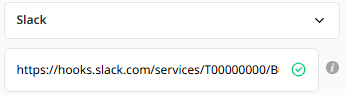 In the SMS forwarding settings in your account, select the "Slack" option.
- Paste your Slack webhook URL into the field.
- Click "SAVE".
How to view SMS statistics:
 Log in to your Personal Account.
- Open the "SMS" tab in the "Statistics" block.
- The "Filter" tab will help you filter messages by a specific number or view messages received from all numbers in real time. You can also set a filter by date to view messages received within a specific time period.
-
The "Sort" tab allows you to sort your received messages by a range of criteria: by date, sender, recipient, cost or status.
- The handy “Send CSV by email” option will also help you receive statistics in text format at the email address.
