
The call forwarding method you selected when purchasing the number will be set by default, and you can also set it as the standard for your other numbers by ticking the relevant box at the time of purchase. You can set two forwarding methods in your settings – concurrent or sequential – with a choice of timeout for the sequential method.
🔧How to set up call forwarding
Forwarding to:
☎️Phone number
✈️Telegram
🆓SIP account
Softphone configurations:
📲For Android
Zoiper
Linphone
🍎For iOS
Zoiper
Linphone
💻For a computer (Windows/Mac)
Zoiper
MicroSIP
.png) Log in to your Personal Account.
Log in to your Personal Account.- Open the "YOUR NUMBERS" tab in the "Statistics" block.
- Click the "Settings" button next to the number you want to configure.
- Open the "Configure Call forwarding" tab in the "Forwarding" block.
- Select the first call redirection destination (Phone number, Telegram or SIP). Enter the path value.
- Select the duration of the call after which the call will be diverted to another destination (If call forwarding is sequential), to voicemail (If this option is enabled, call forwarding is simultaneous and you were unable to answer the call on any of the specified call-forwarding destinations) or be dropped.
- If necessary, add a second forwarding method by moving the relevant slider and selecting a path. Enter the path value.
- Select the duration of the call after which the call will be diverted to voicemail (If this option is enabled, call forwarding is sequential and you were unable to answer the call on any of the specified call-forwarding destinations) or be dropped.
- Select how calls will be routed if there are several types of call forwarding: simultaneously or sequentially.
Call simultaneously: the call is sent to both directions at the same time.
Call sequentially: if nobody answers in the first direction within the timeout, the call goes to the second one. - Click "Save".
Please note that mobile numbers support only one communication channel. Landline and toll-free numbers include two channels for simultaneous incoming calls by default. Additional channels can be added for an extra fee or upon submitting the required documentation. For details on adding channels or configuring additional call forwarding, please contact customer support.
See How to upload the voice greeting, set up the voicemail and convert the audio file in this article.
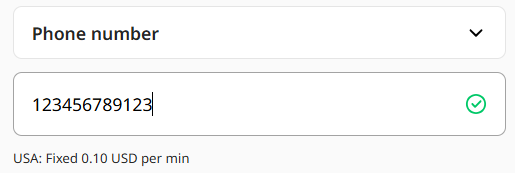
- In the call forwarding settings, enter any phone number where you want to receive calls.
Please note that not all numbers are able to receive calls from abroad. If such restrictions are imposed by the legislation of the country from which the number was purchased or the country of the number to which the call is being forwarded, a successful connection cannot be guaranteed. - Click "Save".
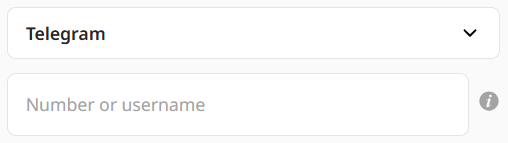 In the call forwarding settings, enter a number registered in Telegram or your username (without the @ sign).
- Click "Save".
Hover over the "i" icon next to the field to see a hint.
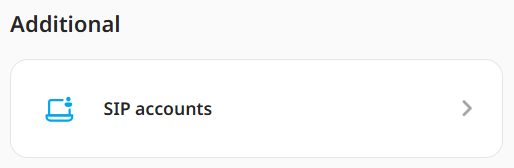 Then click the "Request a SIP account" button. The SIP account will be provided within 24 hours.
 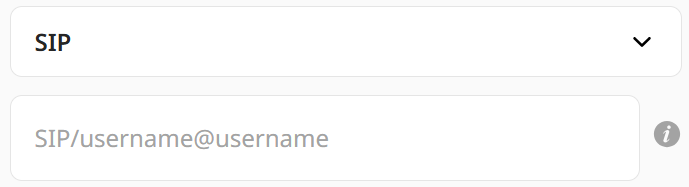 In the call forwarding settings, enter SIP/username@username.
 - Click "Save".
For example, if the username for the SIP account is 0000000000, you need to enter SIP/0000000000@0000000000 in the forwarding field.
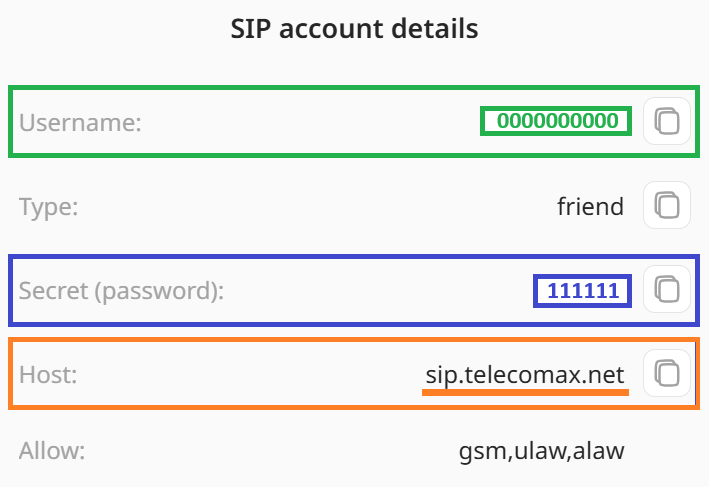
You can find your username in the "SIP accounts" tab in the "Additional" section of your personal account. Click “i” to view your SIP account details.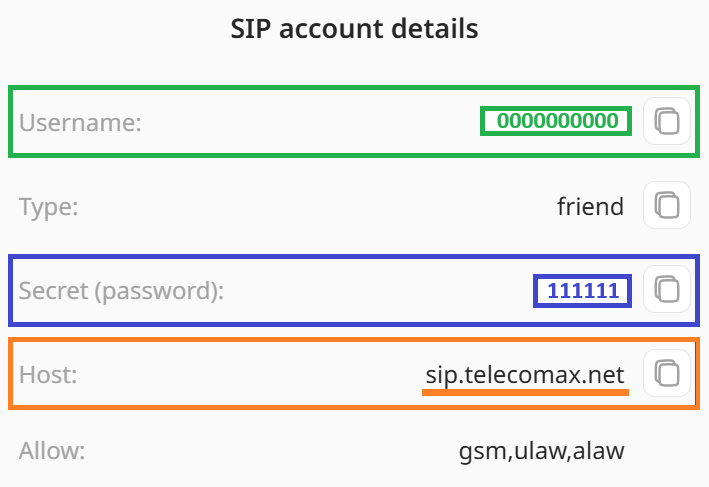
To use a SIP account from a third-party provider (not from us), enter in the call forwarding settings: SIP/SIP_ID@provider.com.
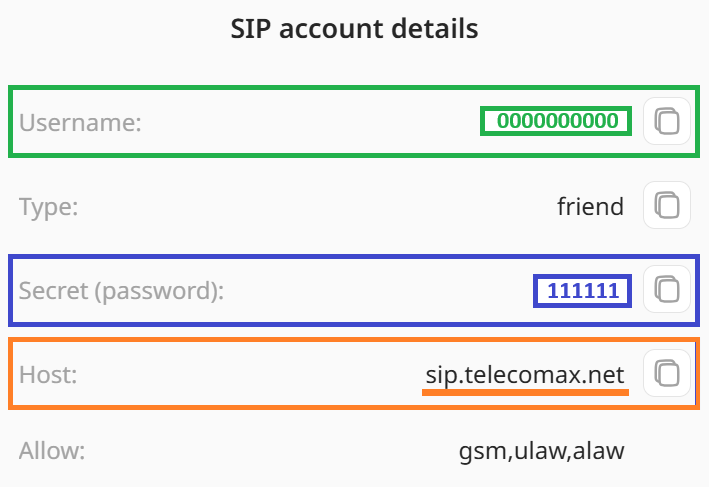
Your Username (0000000000)
Your Password (111111)
Host (sip.telecomax.net)
and, in rare cases, Transport (UDP)
We’ve included basic instructions for the most popular apps in this category: Zoiper, Linphone, MicroSIP. It’s entirely up to you which softphone to use and how to configure the additional options in these apps.
- In your personal account, purchase a virtual voice number from the country you want, then request a SIP account.
- Download and install the latest version of Zoiper here.
- Run the application and accept the terms and conditions.
-
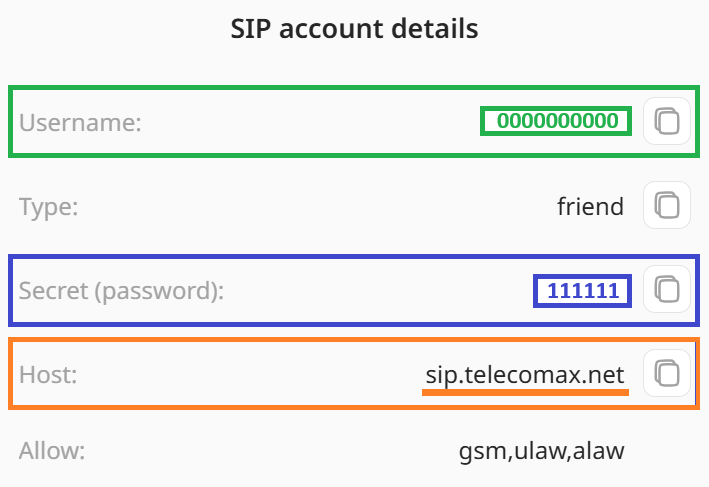 Enter data from your personal account (“SIP accounts” tab in the "Additional" section):
Username = Username
Rrovider = sip.telecomax.net
Password = secret (password)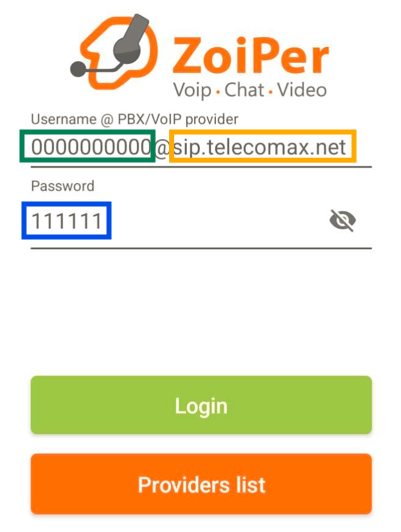
- Click "Login"
- Your provider should be detected automatically as sip.telecomax.net; click "Next"
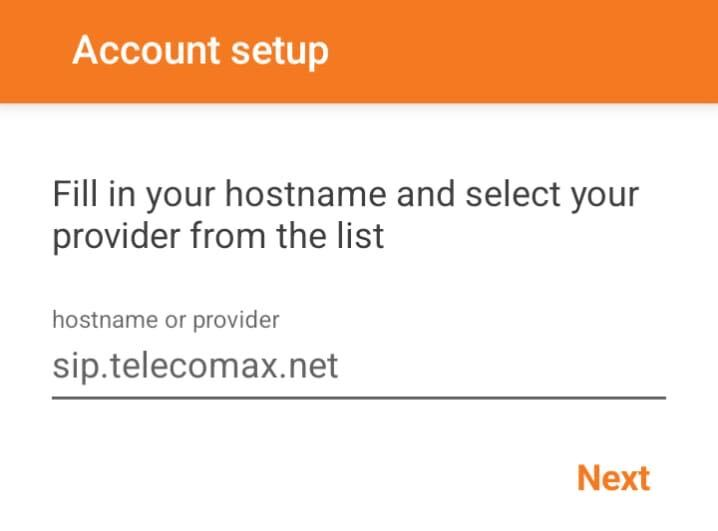
- Skip the step involving outbound connection settings.
- Select "SIP UDP" and click "Finish"
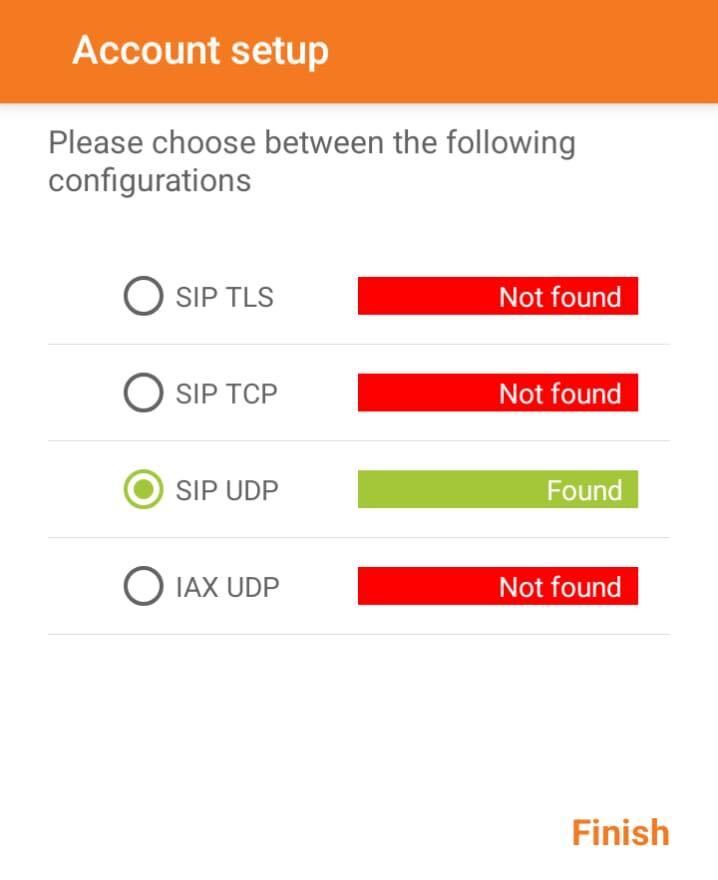
- Grant the app all the necessary permissions so you can use it properly.
- Your softphone is now set up and ready to receive calls.

Don’t forget to configure the relevant settings in the number’s call forwarding settings
- In your personal account, purchase a virtual voice number from the country you want, then request a SIP account.
- Install the latest version of Linphone by following the link.
- Grant the app all the necessary permissions so you can use it properly.
- On the login screen, click "Use a third party SIP"
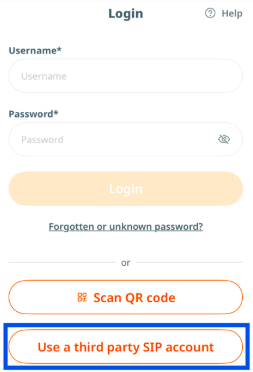
- Accept the terms and conditions of the service.
- The app will warn you that you cannot use group chats and video chats without registering on the app itself. Tap "I understand"
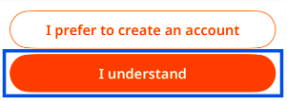
Enter data from your personal account (“SIP accounts” tab in the "Additional" section):
Username = Username
Password = secret (password)
Domain = sip.telecomax.net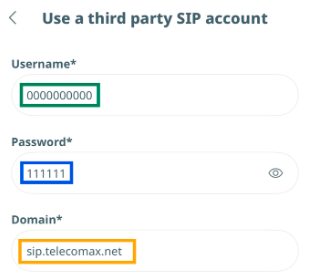
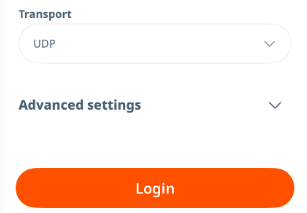
- Switch Transport to UDP and click "Login"
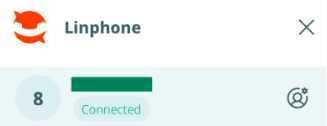
- Your account should now be ready for use.
Don’t forget to configure the relevant settings in the number’s call forwarding settings
✔️Exceptional battery efficiency on iOS thanks to highly optimized push notifications for incoming calls.
✔️Superior call quality and stability on mobile networks via advanced noise suppression and built-in encryption.
✔️Modern, user-friendly interface.
- In your personal account, purchase a virtual voice number from the country you want, then request a SIP account.
- Find and download Zoiper from the App Store.
- Launch the app and press the "Settings" button.
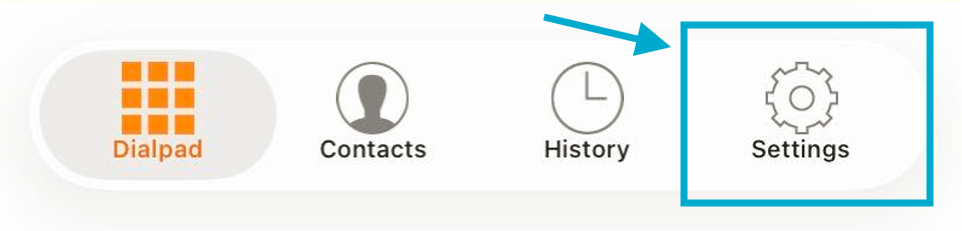
- Click on the "Accounts" button.
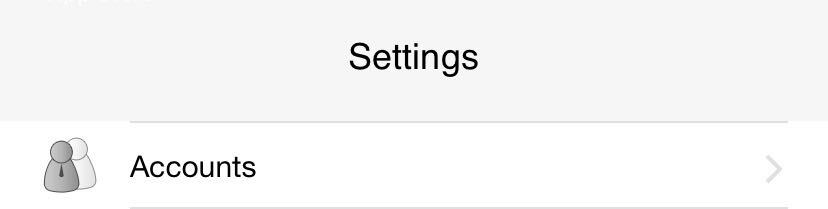
- Press the "+" button

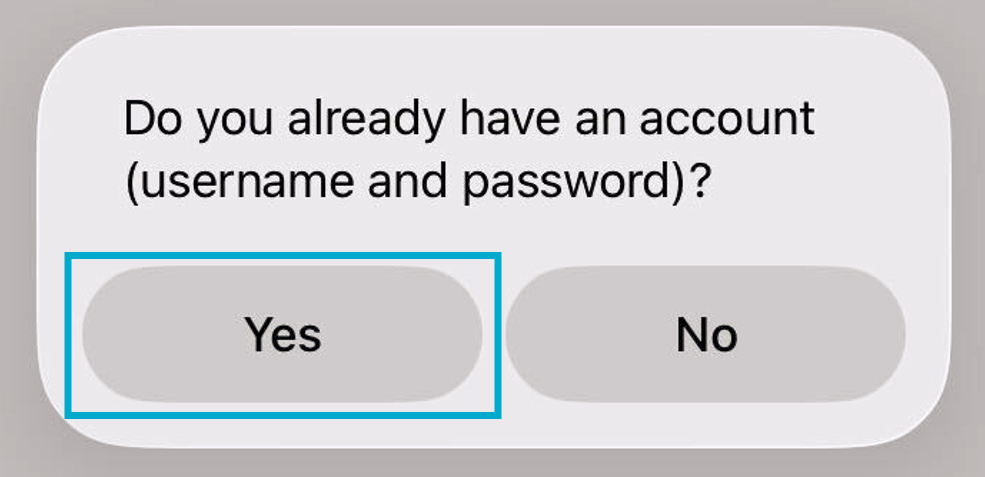
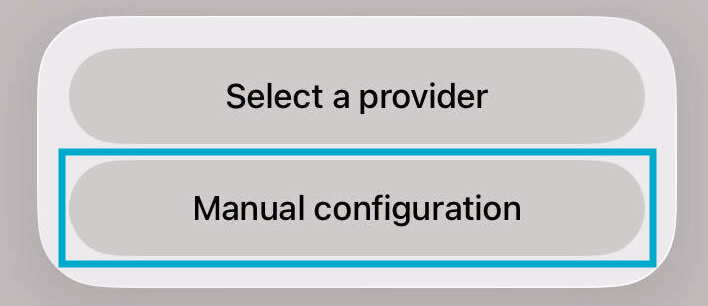
- Indicate that you have an account and select "Manual configuration".
- Choose "SIP account".
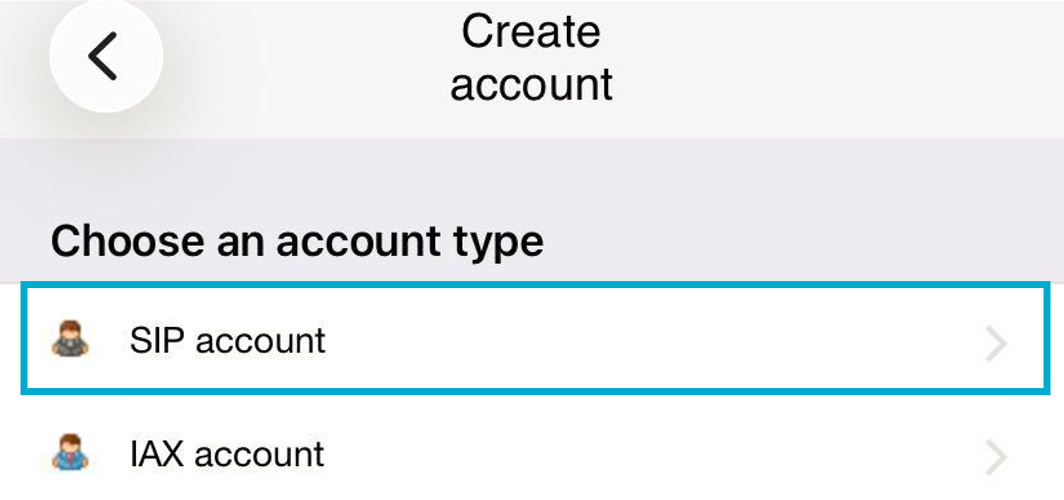
-
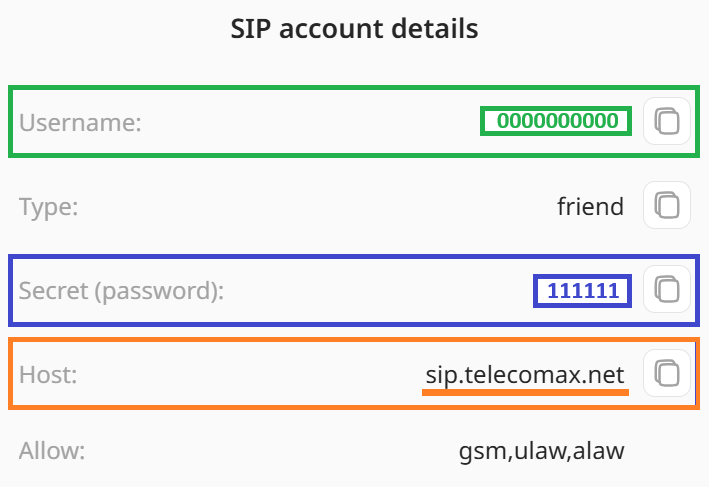 Enter data from your personal account (“SIP accounts” tab in the "Additional" section):
Account name – can be anything;
Domain = sip.telecomax.net
User name = Username
Password = secret (password).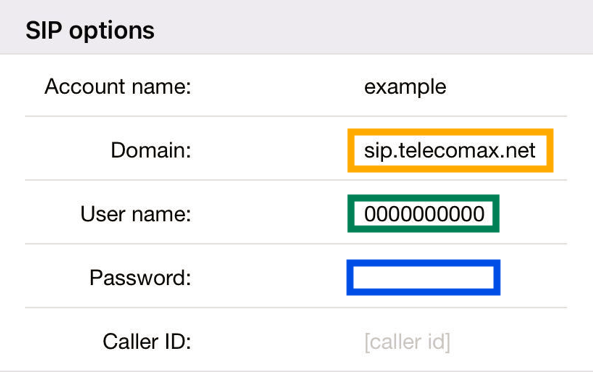
- Click the "Register" button.

- Your account should now be ready for use.
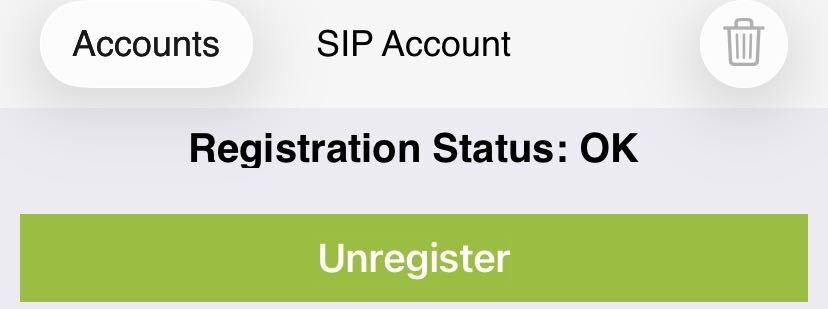
Don’t forget to configure the relevant settings in the number’s call forwarding settings
Authorisation with the same SIP account is not possible on multiple devices at the same time. If you decide to log in to a new device with the same data, the authorisation on the previous device will become inactive.
✔️Receives incoming calls even when closed or in sleep mode via Apple PushKit & CallKit.
✔️Background push service is completely free, unlike Zoiper’s paid Push Proxy setup.
✔️Wakes up only when a call arrives, saving battery without staying constantly active in memory.
- In your personal account, purchase a virtual voice number from the country you want, then request a SIP account.
- Install the latest version of Linphone from the App Store.
- Grant the app all necessary permissions to run smoothly.
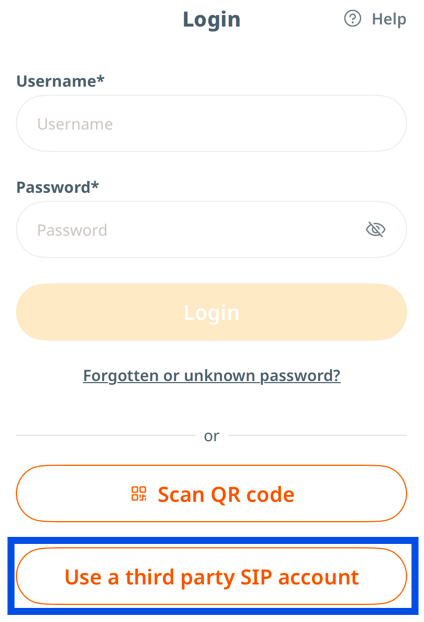
- On the login screen, click "Use a third party SIP"
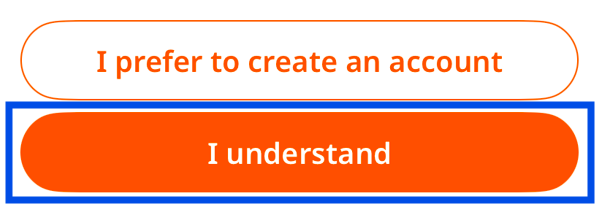
- The app will warn you that you cannot use group chats and video chats without registering on the app itself. Tap "I understand"
-
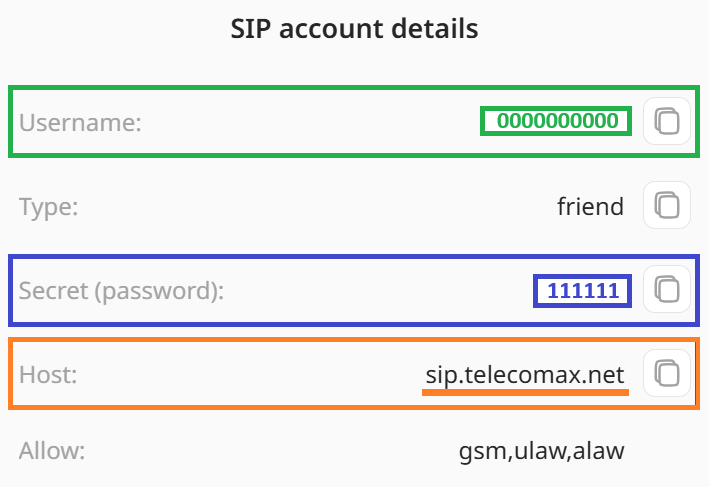 Enter data from your personal account (“SIP accounts” tab in the "Additional" section):
Username = Username
Password = secret (password)
Domain = sip.telecomax.net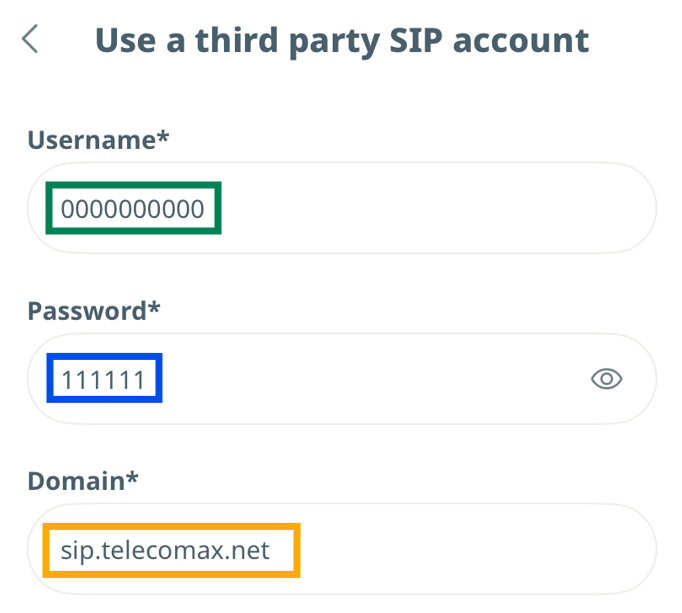
-
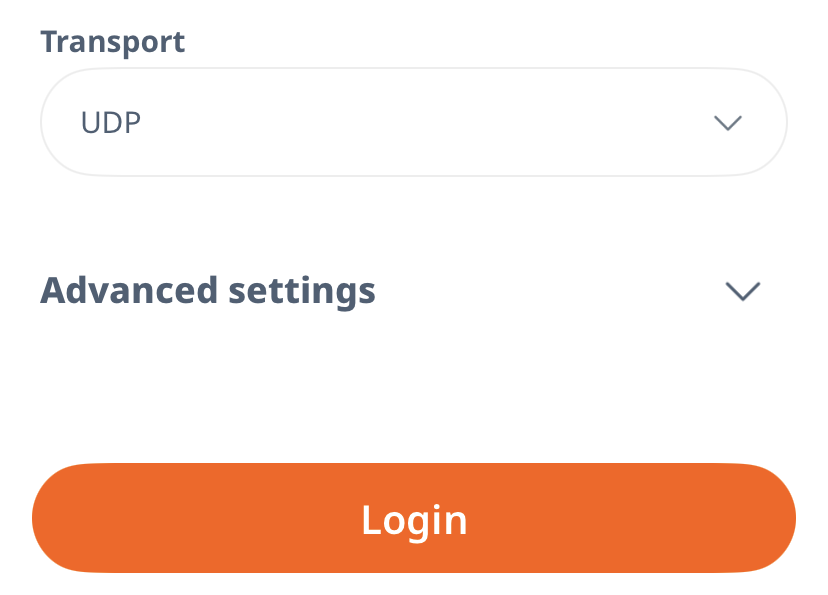
Switch Transport to UDP and click "Login"
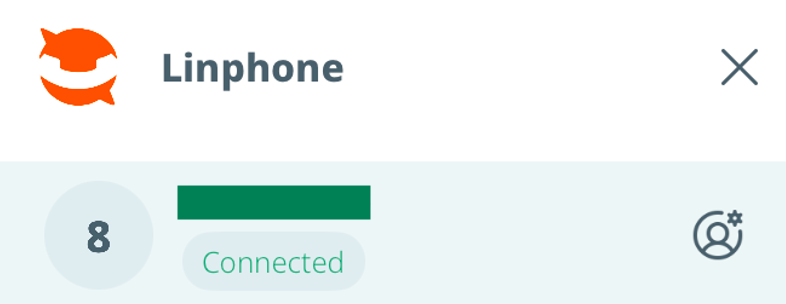
- Your account should now be ready for use.
Don’t forget to configure the relevant settings in the number’s call forwarding settings
Authorisation with the same SIP account is not possible on multiple devices at the same time. If you decide to log in to a new device with the same data, the authorisation on the previous device will become inactive.
- In your personal account, purchase a virtual voice number from the country you want, then request a SIP account.
- Download and install the latest version of Zoiper using this link.
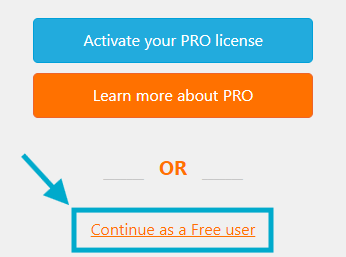
- Run the program. Click on "Continue as a free user" at the bottom of the window.
-
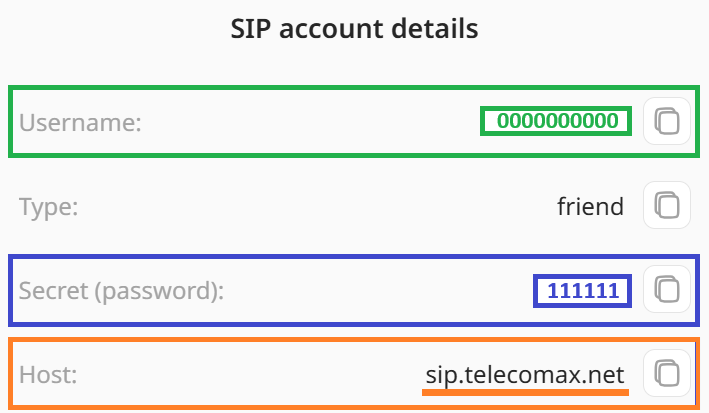 Enter data from your personal account (“SIP accounts” tab in the "Additional" section):
Username = Username
Password = secret (password)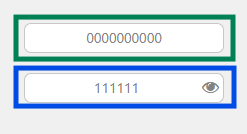
- Click on "Login". Fill in the "Hostname" field with your SIP account host: sip.telecomax.net.
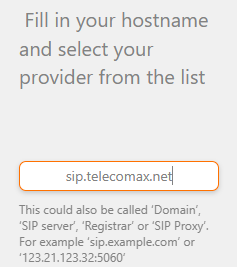
- Click "Next"
- Skip the next step with Authentication and Outbound proxy.
- Once the possible configurations have been tested, click the "Next" button.
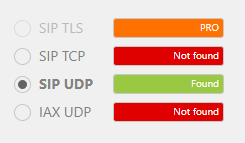
- If the configuration of the SIP client and activation of Zoiper are correct, you will notice two green ticks in the app, one in the upper left and the other in the lower left corners.
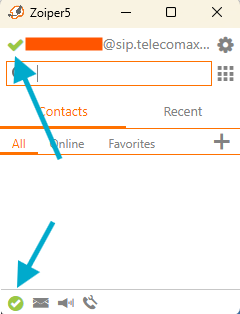
Don’t forget to configure the relevant settings in the number’s call forwarding settings
- In your personal account, purchase a virtual voice number from the country you want, then request a SIP account.
- Download and install the latest version of MicroSIP using the link.
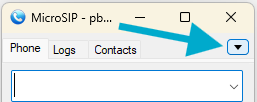
- Run the program and open the menu (down arrow button).
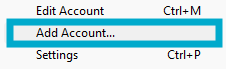
- Select “Add Account…” from the menu
-
In the “Account” window that opens, fill in the required fields with data from your personal account (“SIP accounts” tab in the "Additional" section):
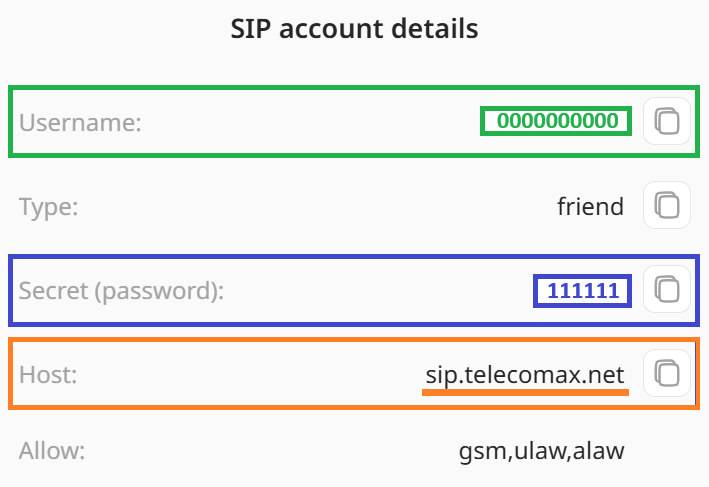 Account Name – can be anything;
SIP Server, SIP Proxy, Domain = sip.telecomax.net;
Username, Login = Username;
Password = secret (password).Everything else can be left at default.
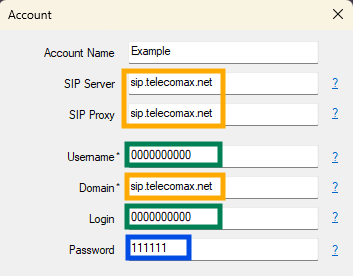
- Click "Save"
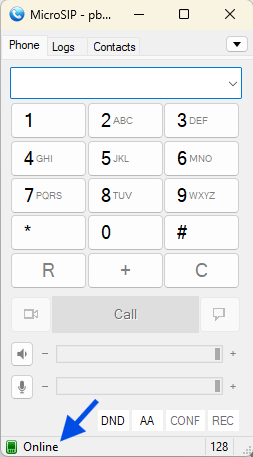
- At this step, the authorisation is completed in MicroSIP. In the lower-left corner, there will be a green “Online” status – this indicates that the softphone is configured correctly and connected to the server.
Don’t forget to configure the relevant settings in the number’s call forwarding settings
