
📞📩Voicemail and IVR settings
How to set up Voice greeting, IVR
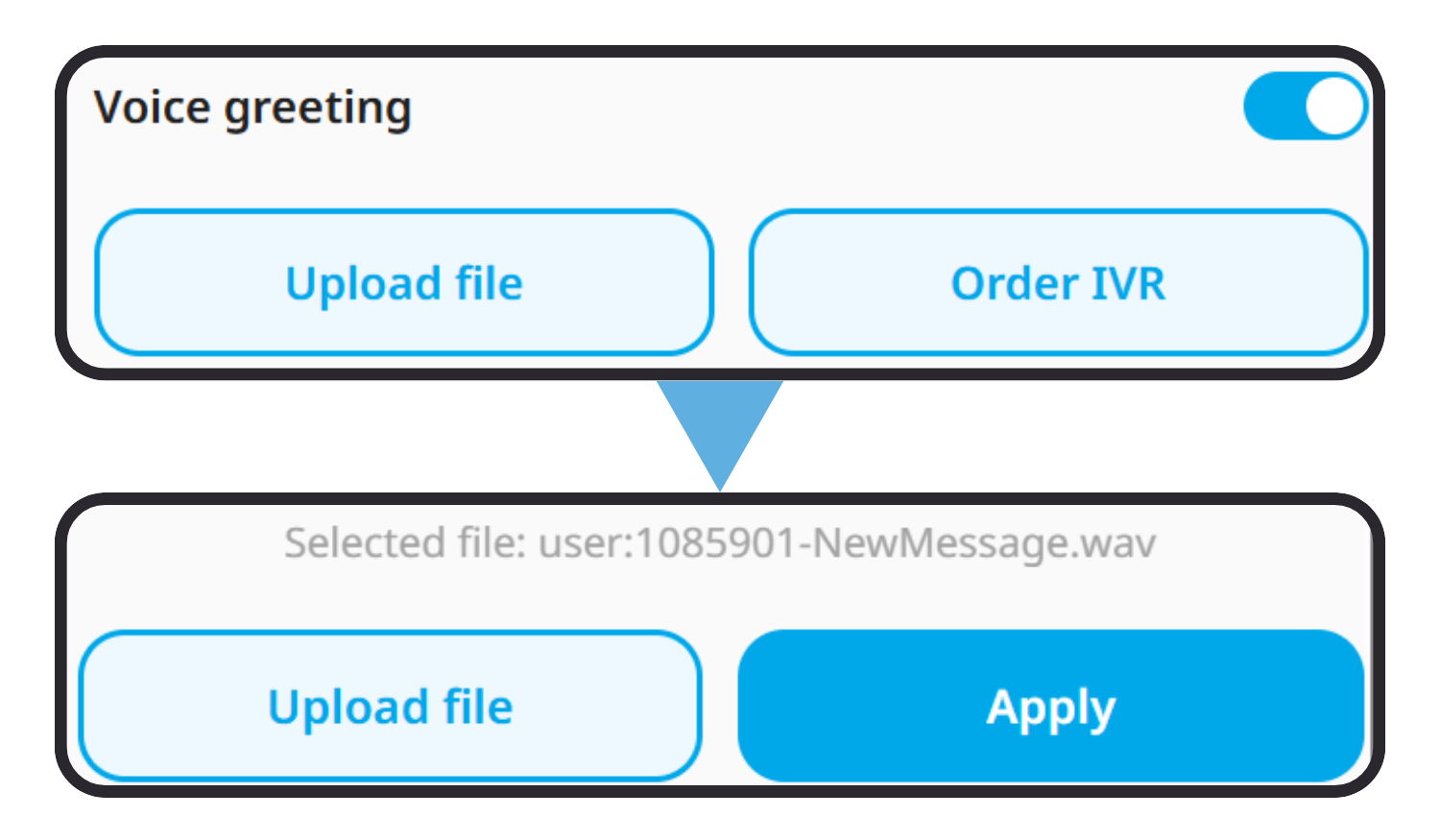 In the call forwarding settings, click the relevant slider to enable the voice greeting.
- Click “Upload file” to upload your own voice greeting file and click "Apply"
Make sure your audio file meets the requirements of WAV, PCM, 8kHz, 16bit, mono. See how to convert an audio file to the correct format.
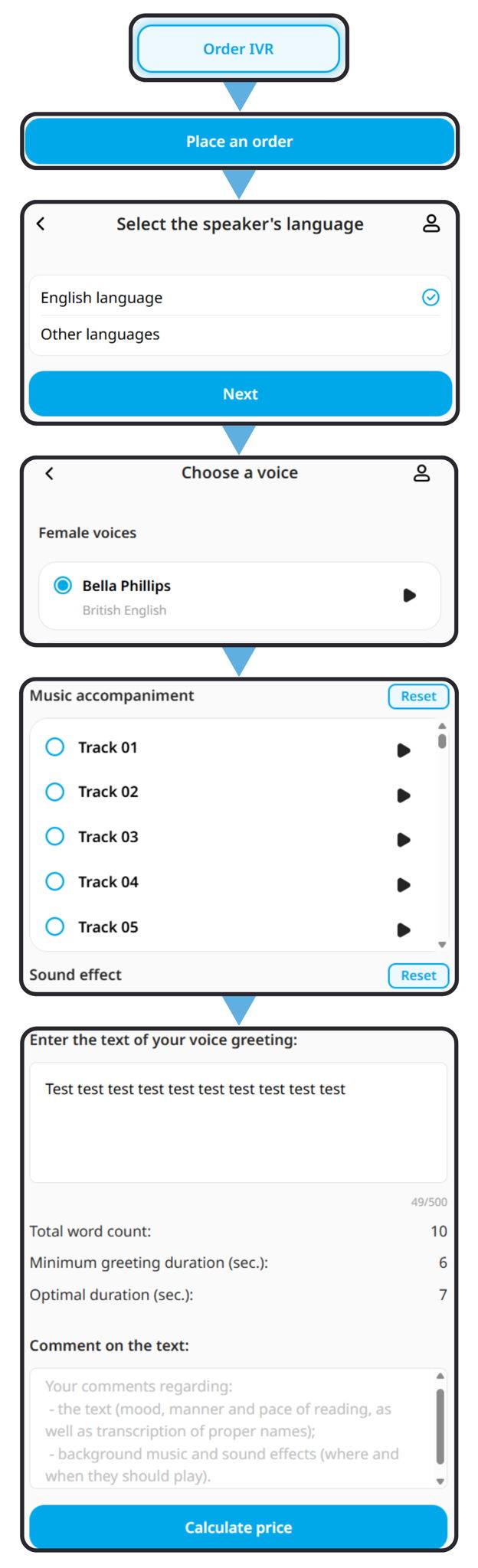 To order a voice greeting from us, click "Order IVR" in the call forwarding settings or in a separate tab in your personal account.
- Click "Place an order".
- Select the speaker’s language and click "Next".
- Select a speaker’s voice (you can listen to each one beforehand by clicking the play button) and click "Next".
- Select music accompaniment and sound effect, then click the "Next" button. Skip this step by clicking "Next" if you do not require any sound effects.
- Enter the text of your voice greeting and your comments on the following points:
- the text (tone, delivery and pace, as
well as the transcription of proper names);
- background music and sound effects (where and
when they should be played). - Click "Calculate price"
- Click "Buy"
The minimum greeting duration is 4 seconds
To order and configure a multi-level IVR tree, please send your technical specifications to the support department for a quote.
.png) In the call forwarding settings, tap the relevant slider to enable the voicemail option.
In the call forwarding settings, tap the relevant slider to enable the voicemail option. - Enter the email address where you would like to receive voice messages if you miss a call.
- Click "Upload File" to upload your own voice greeting file.
- Upload the file and click "Apply"
- Click "SAVE".
Make sure your audio file meets the requirements of WAV, PCM, 8kHz, 16bit, mono. How to convert an audio file to the correct format.
You can also listen to the default voice message and, if you’re okay with it, return to the call forwarding settings and click "Save"
In this guide, we will use free online audio converter. You may use any other website or software you are familiar with.
Your audio file should be of the WAV type, PCM (uncompressed) format and the following attributes: 16bit, 8kHz, mono. To ensure that your audio file meets the requirements, please follow these steps:
- Go to audio.online-convert.com/convert-to-wav
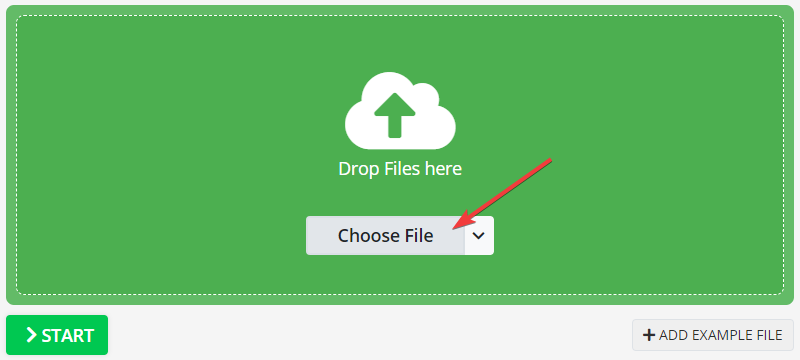
- Upload your audio file by clicking on the 'Choose File' button.
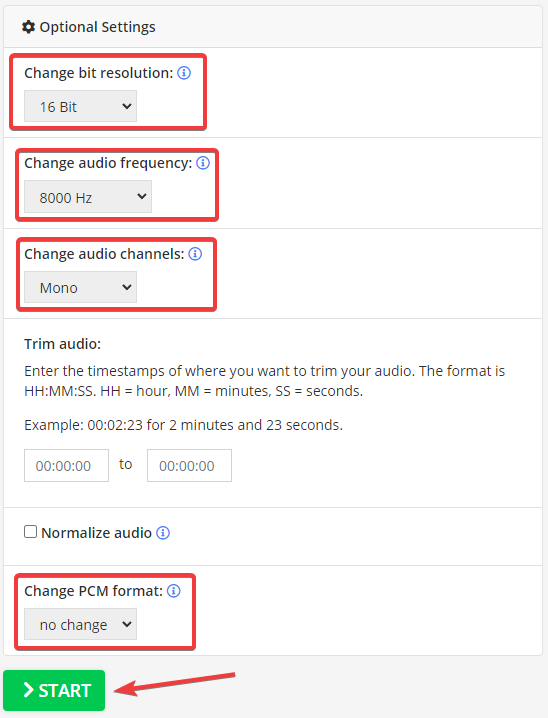
- Choose the following attributes in the 'Optional Settings' menu. And press the 'START' button in the end.
- The website will take you to a new page where the automatic download will start.
Now your file has been converted to the correct type and should meet all requirements! You may upload it to use as greeting/voicemail message on our website.
