Contents:
- Key account controls and information
- Our services (Order a number/IVR/One-use number)
- Additional (SIP accounts)
- Statistics (Your numbers/SMS/Transactions/Profile)
Key account controls and information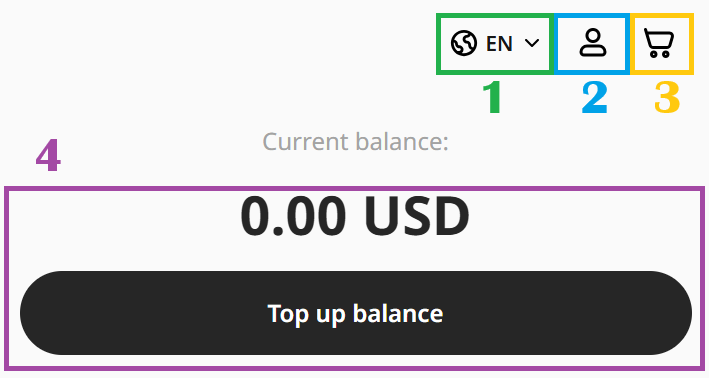
- Personal account language. By clicking this button, you can select your preferred language for viewing your personal account and its options. The account is currently available in 12 languages worldwide.
Please note that when purchasing a number, all country names will be displayed in English - Profile. On this tab, you can view your account ID, edit your personal account details, change your email address for notifications from our service, add your company name and address for future invoices, change your password, and delete your account.
- Shopping cart. Here you can view your numbers and services and pay for your purchases with a single click. You can select several numbers to pay for at once, and set the rental period for the numbers to 1, 3, 6 or 12 months.
To avoid monthly top-ups, you can purchase the number outright for 3, 6, or 12 months and receive a nice discount of 3%, 5%, or 10%.You can also select one or more services that you no longer require and remove them from your shopping cart. - Account balance and top-ups. To find out everything about the available methods and the specifics of topping up your account in various ways, read this article.
Our services
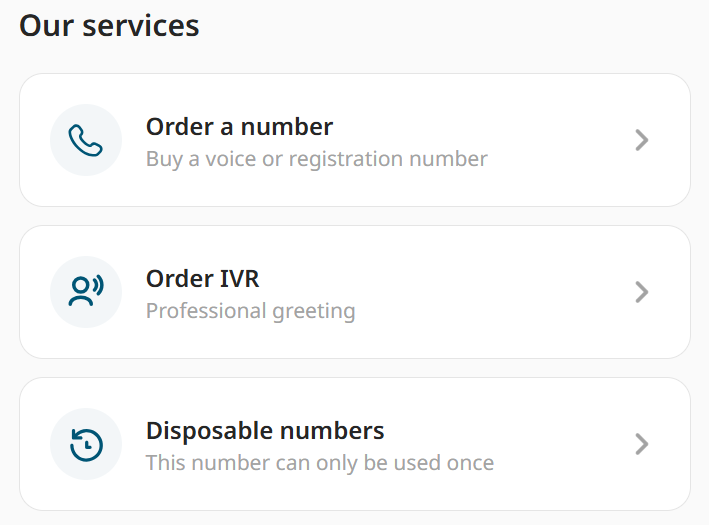
- Order a number. Here you can select one or more numbers and either make a purchase straight away or add your chosen numbers to your shopping cart. Read this article to find out which type of number is best to choose. Find out more about making a purchase via this tab here.
- Order IVR (Professional greeting). On this tab, you can order a voice greeting service, a voicemail greeting or an IVR file featuring the voices of professional voice-over artists. Read this article to find out everything about this option and how to order the service.
- Disposable numbers. You can order a one-off number here. Simply select the service, choose a number and pay for your purchase. Find out more about the service in this article.
Additional
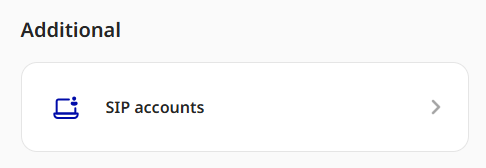 SIP accounts. This tab displays your SIP accounts. This tab will become available as soon as at least one number with the call option is active on your account. Call forwarding to a SIP account (usually free of charge) allows you to receive calls on a dedicated application (softphone) or on your PBX. Read all about SIP accounts and softphones in this article.
Statistics
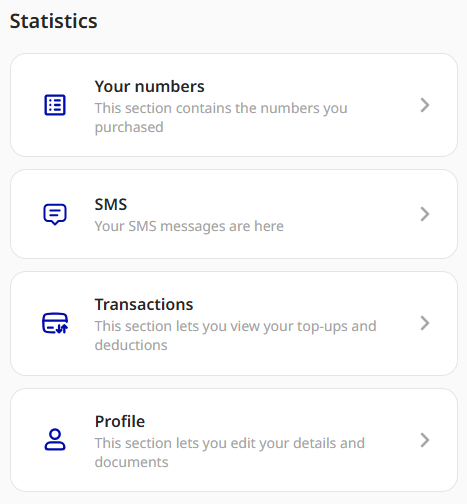
- Your numbers. All the numbers you have purchased are displayed here: both active and inactive ones. In this tab, you can manage your numbers, set up call forwarding for several numbers at once, view the activation dates and upcoming payment dates, and delete one or more numbers at once.
The information for each number looks like this: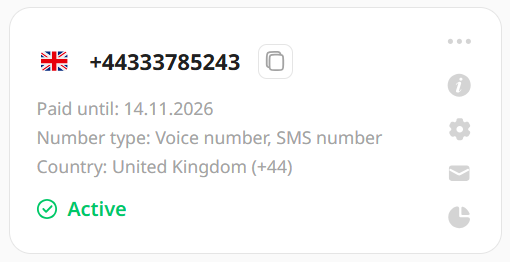
>Full info
>Number settings>SMS Statistics
>Call Statistics
To set up a single call forwarding route for several numbers, follow these steps:
- Click the “Select” button
- Select all or some numbers, then click “Select action”
- Click “Configure”
- Select the desired forwarding methods, then click “Save Data”
See this article for instructions on setting up Call forwarding. You can find out how to set up SMS forwarding here. - That’s it – forwarding settings have been set up for several numbers at once.
- SMS. SMS statistics are available for all your numbers at once in a single tab. By default, you will see a full list of all messages received by your numbers. You can filter them by date or select messages from a specific number. You can also sort them by a range of criteria: By date, by sender, by recipient, by cost, by status.
- Transactions. All your deposits, withdrawals, and transactions related to your account are listed in this tab. Everything you need to know about transactions, top-ups and number renewals is explained in this article.
- Profile. Duplicates the profile tab in the top right-hand corner of the page. On this tab, you can view your account ID, edit your personal account details, change your email address for notifications from our service, add your company name and address for future invoices, change your password, and delete your account.
